Clip Studio Paint Raster and Vector Layers: What’s the Difference?
If you are learning digital drawing with Clip Studio Paint, understanding raster and vector layers is one of the most useful skills to develop.
The two-layer types may look similar when you are drawing. Still, they handle artwork very differently, and I was highly surprised when, by accident, I used vector layers and found out how powerful they are!
It doesn’t mean raster layers are less useful in any way, definitely not! Knowing when to use each can make your illustration workflow faster and easier, and I’m living for that.
What Is a Raster Layer?
To put it simply, a raster layer stores artwork as pixels. In other words, a raster layer makes it a great choice for artists looking to sketch, add effects, and colour their illustrations on their graphic tablet.
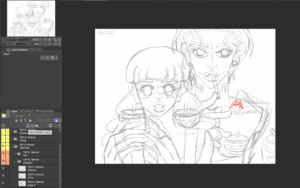
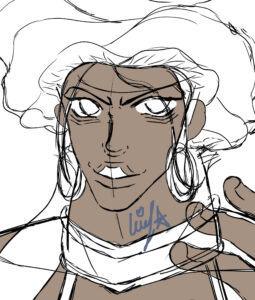
CindyMBK’s sketch made on Raster layers.
Raster layers are particularly useful when creating colourful illustrations because you can:
- Use brushes to blend colours,
- Add soft shadows,
- Create textured effects,
- Paint fine details,
- Select different areas and use the “fill” tool.
Raster layers are also a good option for those who want their digital artwork to feel similar to traditional painting.
Despite its numerous pros, the raster layer’s main drawback is that the artwork can lose quality when enlarged significantly. Lines and details may become pixelated because the artwork is composed of a fixed number of pixels, unlike vector layers.
Clip Studio Paint for Beginners:
How to Start Digital Drawing With a Graphic Tablet
What Is a Vector Layer?
Instead of storing every mark as pixels, it records lines as editable paths. This allows you to resize and modify your strokes while maintaining clean edges.
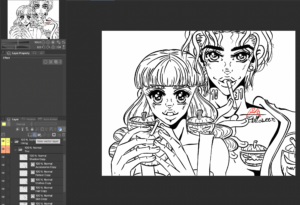
Line art was made with vector layers, then the correct line was used to thicken some lines.
Vector layers are especially helpful for line art, comics, and black-and-white manga panels. If you draw a line and later decide that its position, thickness, or shape needs changing, you have more editing options than with a typical raster layer.
These are some essential tools that will help you on your journey, ONLY when using vector layers:
- Vector Eraser: erases vector lines cleanly while keeping the rest of your artwork intact.
- Rough Eraser: quickly removes unwanted marks, making it useful during the early stages of an illustration.
- Correct Line: lets you refine existing lines by adjusting their thickness, shape, or smoothness for cleaner, more polished artwork.
Graphic Tablet vs Traditional Paper and Pen:
Which Is Better for Artists?
Raster vs Vector: Which Is Better?
Neither layer type is universally better. Your choice should depend on what you are creating.

| Raster | Vector |
|---|---|
| Sketches | Clean line art |
| Textures and brush effects | Comics and manga panels |
| Colourful and black-and-white illustrations | Editable strokes |
| Detailed shading | Resizable artwork |
For many digital artists, the best approach is to use both. You could create your line art on a vector layer, then use raster layers underneath for colours, shadows, and textures.
If you are starting with Clip Studio Paint, experimenting with both layer types is a simple way to discover which workflow best suits your illustration style.
